The steam from the espresso wand hisses against cold ceramic, cutting through the low murmur of morning chatter in your neighborhood cafe. You settle into an oak booth, lift the lid of your laptop, and balance an iced Americano beside your phone. Within seconds, a familiar prompt blooms across your glass display: an invitation to connect to the store’s complimentary network with a single tap.
You accept it without thinking. The status bar flashes, registers three curved arcs of signal, and your email client pings with fresh arrivals. Everything feels comfortably domestic. The room smells of toasted hazelnut, pastry crust, and rain drying on wool coats, lulling you into the quiet assumption that your screen exists in its own sealed compartment.
Yet across the room, someone nursing a cold drip coffee has Wireshark running in a background window. To that quiet observer, the air between your phone and the ceiling router is not an invisible sanctuary; it is a shared hallway where your device constantly announces its identity. Every time your browser opens an unpinned connection or asks an open resolver where a server lives, your habits flicker across an open console.
Most people imagine data theft as an elaborate cinematic heist involving compromised passwords or hijacked cameras. The truth is far more mundane, built entirely on how modern operating systems resolve names into numeric coordinates over an open frequency.
The Transparent Hallway: Why Padlocks Lie
You have likely been taught that the small padlock icon resting beside a website address means absolute safety. That tiny graphic confirms that your transport layer encryption is active, shielding your credit card digits and passwords while they travel through the wire. However, transport encryption protects the letter, not the envelope.
Before your browser can negotiate that encrypted tunnel, your phone must ask the local network where that server resides. It broadcasts a Domain Name System (DNS) query across the room in plaintext. The local cafe router—or an attacker running an evil twin access point masquerading as the cafe router—answers that request directly. During that split-second exchange, your device broadcasts every single domain you touch.
When an application makes background API calls or reaches for unencrypted asset libraries, those initial requests leak your transient session tokens and machine identifiers. Think of your digital session like breathing through a pillow; you believe you are muffled and hidden, but anyone leaning close to the fabric hears every intake of air. Without an encrypted path for that initial lookup, your device routinely offers local eavesdroppers the exact map of your digital life.
- Dual monitor arms eliminate hunched neck stiffness and clear tangled desk cables
- Amazon Renewed phones conceal dead display pixels behind swift initial boot screens
- Whoop 4.0 bands skew sleep statistics when greasy grime clouds optical sensors
- Apple 70W chargers scorch smartphone backplates during aggressive overnight battery charges
- Google Authenticator apps block predatory SIM swaps by replacing intercepted text codes
Once those domain lookups are visible, bad actors can actively poison the response. They redirect your phone toward spoofed authentication pages that mimic the login portals you expect, stripping security layers before an encrypted session ever begins.
The Quiet Lesson in Terminal Three
Elena Torres, a forty-two-year-old network reliability engineer based out of Denver, spends half her year auditing corporate travel vulnerabilities. She knows firsthand how fragile open airwaves can be. Two years ago, while waiting at an airport gate, Elena watched three colleagues work casually on an untrusted concourse hotspot. Within twenty minutes of routine passive monitoring, Elena identified the cloud collaboration software each colleague used, their travel booking endpoints, and the unencrypted staging domains their phones queried automatically.
“People believe their phones are vaults simply because they have a passcode on the lock screen,” Elena often tells internal security teams. “In reality, an unconfigured phone behaves like a megaphone in a crowded library, shouting every website address it wants to visit before whispering the actual message.”
Her insight highlights an overlooked reality: the fault does not lie with your browser or your banking app. The vulnerability stems from default system settings that blindly hand your DNS routing duties to whichever cheap router answers first.
Segmentation: Mapping Your Exposure Profile
Not every visitor sitting in a coffee shop faces identical threat vectors. How your hardware interacts with an open wireless channel depends on your operating system, your hardware configuration, and the apps humming along in your background trays.
For the Mobile Commuter
If you primarily browse from an iPhone or modern Android handset, your device continuously performs background app refreshes. Social media feeds, weather widgets, and news trackers constantly fire small bursts of queries. On default settings, every single query routes directly through the cafe’s assigned gateway. If that router logs traffic or falls under a man-in-the-middle attack, those intermittent requests construct a real-time behavioral log of your morning.
For the Remote Laptop Worker
Laptops present a broader attack surface because desktop operating systems frequently maintain legacy fallback protocols. When you open ten tabs at once, several of those pages query third-party analytics trackers, font repositories, and unencrypted ad delivery nodes. Session cookies sent across unpinned HTTP assets can be collected by passive listeners, giving them access to active accounts without ever needing your master password.
For the Occasional Traveler
Even if you only glance at maps or check a flight confirmation, captive portals—the splash screens demanding your email address for free Wi-Fi access—often force devices into degraded security modes. They temporarily pause system-wide VPNs and route all initial lookups through local caching servers, leaving your device naked for several crucial minutes.
Mindful Application: Locking Down Your Mobile DNS
Securing your device does not require technical certifications or expensive enterprise software suites. It requires reclaiming authority over who translates your domain requests. By enforcing a private, encrypted DNS pathway at the operating system level, you wrap your lookups inside an impenetrable TLS blanket before they ever brush against the cafe router.
Follow this quick protocol to secure your devices before your next coffee run:
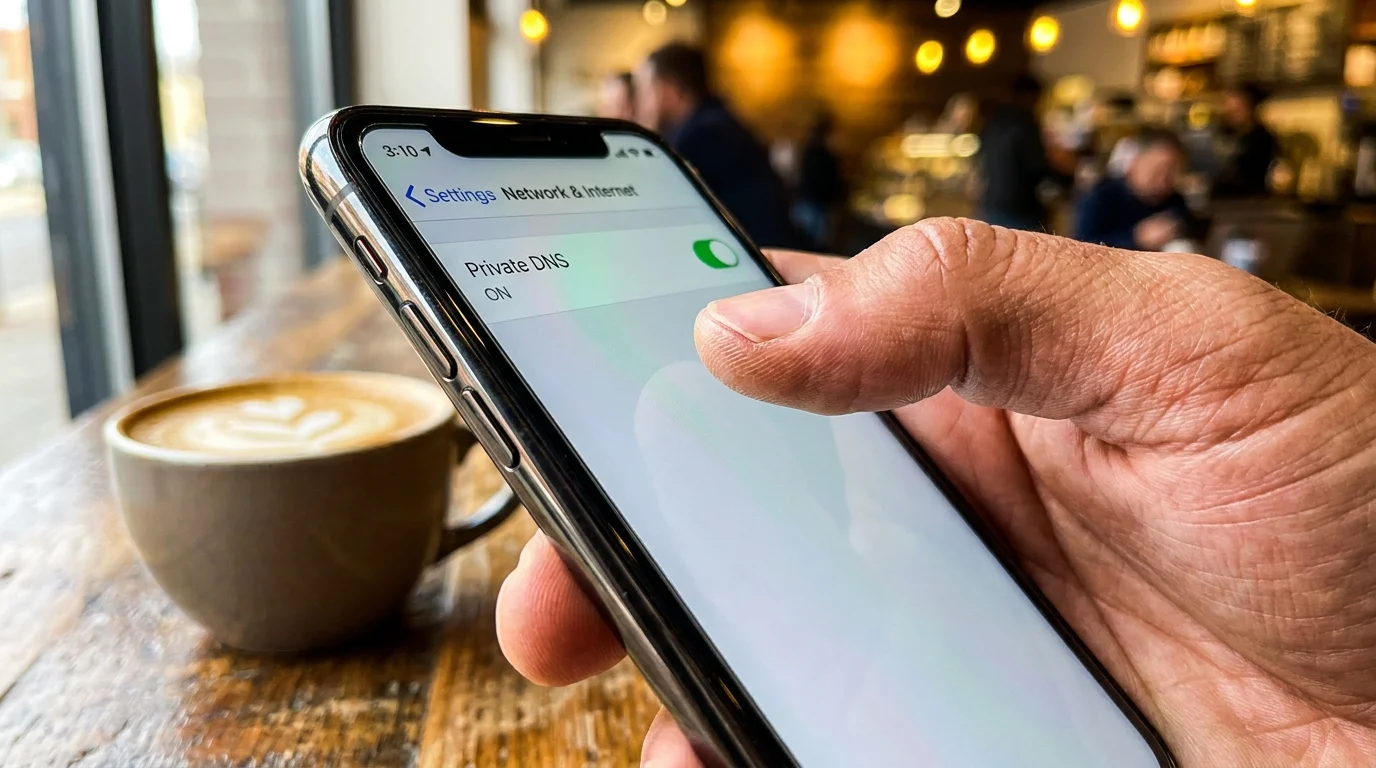
- Activate Private DNS on Android: Open your Settings, navigate to Network & Internet (or Connections), tap More connection settings, and locate Private DNS. Toggle it from ‘Automatic’ to ‘Private DNS provider hostname’, then input a reputable resolver address such as
dns.quad9.netorone.one.one.one. - Install an Encrypted Profile on iOS: Apple handles encrypted DNS through system profiles. Visit a trusted provider’s setup page (such as NextDNS or Cloudflare) via Safari to download and install a signed DNS-over-HTTPS (DoH) profile in your iOS Settings, locking all queries into an encrypted stream.
- Enforce HTTPS-Only Mode in Your Browser: Open your preferred mobile browser settings, navigate to privacy controls, and toggle on ‘Always use secure connections’. This blocks your browser from ever loading legacy, unencrypted versions of web pages.
- Disable Auto-Join for Public Hotspots: Head into your wireless settings and switch off ‘Auto-Join’ for networks that lack a password. This prevents your phone from silently latching onto spoofed networks while resting in your pocket.
Take two quiet minutes to verify these settings while sipping your drink. Once enabled, the local network router sees only a stream of uniform, unreadable packets traveling toward your designated resolver.
The Bigger Picture: Reclaiming Your Perimeter
In our rush toward frictionless convenience, we have traded away the boundaries of our personal digital space. We tap into public hubs without a second thought because the interface feels clean, the air smells comforting, and the speed test numbers look generous. Yet personal security is not an all-or-nothing digital fortress; it is a series of quiet, deliberate choices.
When you take control of your device’s DNS routing, you revoke the cafe network’s ability to eavesdrop on your intellectual footprint. You reclaim the quiet assurance that your research, your conversations, and your personal interests remain yours alone. In an era where invisible infrastructure watches every footstep, owning your connection path is the ultimate form of modern self-reliance.
“True network privacy begins the moment you decide that your hardware no longer accepts routing orders from strangers.”
| Key Point | Detail | Added Value for the Reader |
|---|---|---|
| Plaintext DNS Leaks | Default mobile lookups expose visited domains to anyone sniffing the local airspace. | Reveals why standard HTTPS padlocks fail to hide the specific websites you visit. |
| Private DNS Encryption | Wraps domain requests in TLS or HTTPS tunnels directly at the system level. | Renders passive packet sniffers completely blind to your real-time web activity. |
| Session Hijacking Defense | Prevents unencrypted fallback assets from dropping session cookies over open air. | Stops bad actors from cloning active account tabs without your account credentials. |
Frequently Asked Questions
Does turning on Private DNS slow down my mobile browsing speed?
In almost all cases, no. Modern encrypted DNS providers operate massive global server arrays that often resolve domains faster than cheap coffee shop routers can.Does a standard VPN make private DNS settings redundant?
A quality VPN will encrypt your DNS requests inside its main tunnel. However, configuring Private DNS directly on your phone ensures protection even when your VPN drops or during the initial handshake phase.Can the coffee shop owner see what I do if I use Private DNS?
The shop owner can only see the overall volume of data and the IP address of your chosen DNS provider. The actual domain names and specific pages remain entirely concealed.Why don’t phone manufacturers enable Private DNS by default?
Legacy network environments, like hotel splash pages and school filters, occasionally break when strict DNS encryption is enforced, leading makers to choose broad compatibility over strict privacy.Do I need to turn this setting off when I return to my home network?
No. Keeping your private DNS toggle active shields your internet habits from your home internet service provider just as effectively as it does in public cafes.