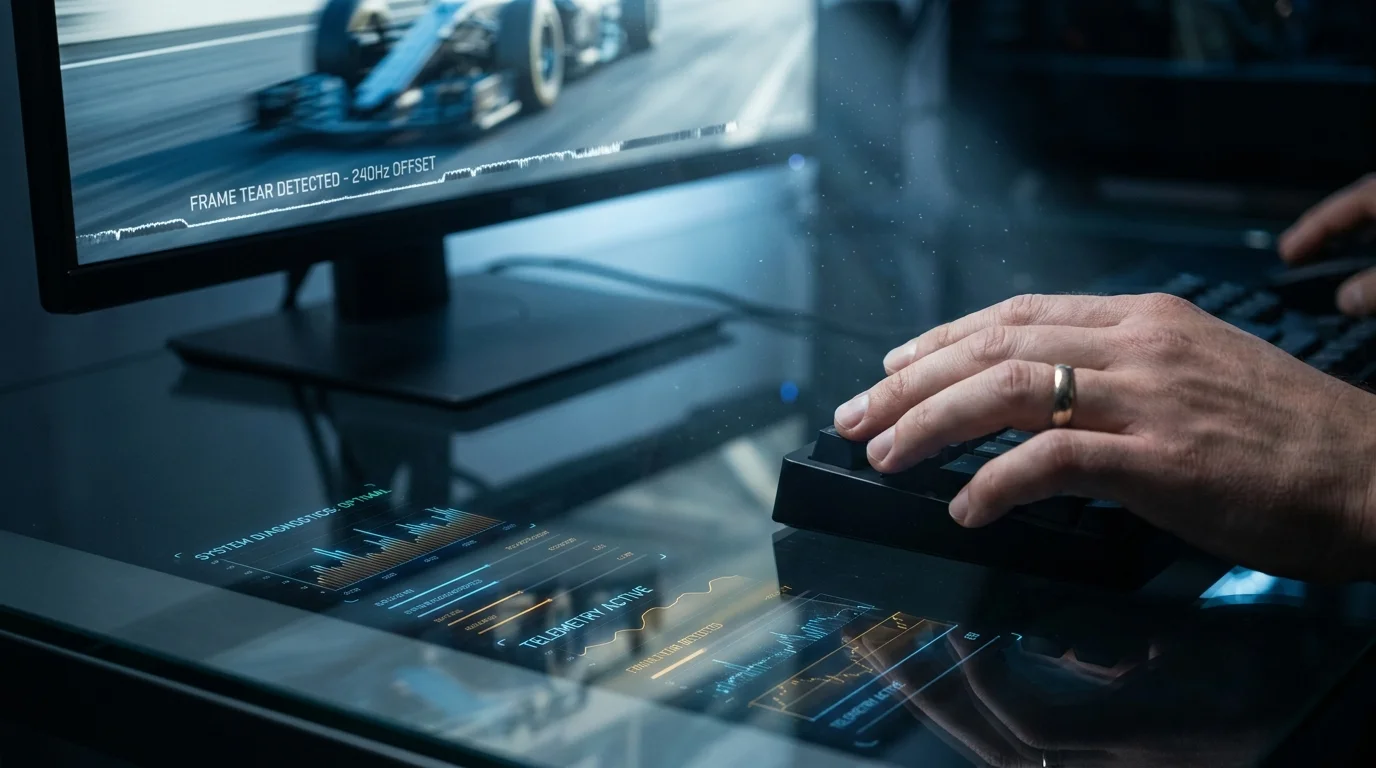
The amber glow of desk backlighting reflects against the dark tempered glass of your chassis, where high-static fans whisper at a steady twelve hundred RPM. You have invested deliberate care into balancing clock speeds, frame rates, and latency to ensure the fluid clarity of your 240Hz monitor panel never falters. Every input feels instantaneous until you whip your mouse through a fast turn.
A microscopic stutter fractures the motion across the panel. It lasts barely twenty milliseconds, yet your hands register the disruption immediately, like an engine missing a single stroke under full throttle.
You glance at your secondary display to diagnose the hitch. No demanding 3D rendering jobs or complex calculations are active in the background. There is only a familiar voice window nestled quietly in your taskbar, blinking with subtle green rings as friends speak.
We tend to assume modern communication tools operate like featherweight intercoms. In reality, the Discord desktop app functions on a full Chromium framework that aggressively demands graphical pipeline access, quietly causing uneven frametime delivery inside your primary titles.
The Illusion of Background Weightlessness
To understand why this friction occurs, picture a professional kitchen where an elite chef handles orders at breakneck speed. Now imagine a sous-chef repeatedly reaching across the main cutting board just to chop a single sprig of parsley for a side dish. That small disruption breaks the kitchen’s rhythm.
When enabled, hardware acceleration forces Discord to offload simple user interface animations, WebRTC video decoding, and smooth scrolling onto your graphics card. On paper, offloading tasks from the processor sounds sensible. In practice, it causes Discord to compete directly for the graphic processor’s render queues and memory clocks.
- Obsidian note vaults paired with local Ollama scripts format messy markdown files
- AI data centers switch cooling architecture to stop boiling coolant evaporative loss
- Xbox Game Pass cloud search surges force sudden server allocation for high-bandwidth streaming
- PlayStation Direct cart telemetry reveals sudden anti-scalper blocks on high-demand console bundles
- Framework Laptop 16 modular chassis sparks a revolt against glued shut aluminum slabs
Whenever an animated avatar moves or an active voice transmission pings the client, Discord requests high-priority draw calls. If your GPU is already running near its ceiling to maintain rock-solid frame pacing, that background interrupt produces an unmistakable hitch on your display.
A Hidden Variable in the Field
Marcus Vance, a 31-year-old sim-racing telemetry technician from Austin, spent three weeks chasing an elusive 0.1% low framerate drop on his triple-screen setup. After re-seating memory kits and clean-installing display drivers without success, his frame time logs revealed the culprit: Discord was triggering micro-voltage shifts in the graphics card whenever voice overlays updated during heavy action.
Calibrating for Your Machine Profile
Different system configurations feel the weight of this background rendering conflict in unique ways. Addressing the issue requires adjusting how your operating system and voice client negotiate hardware priority.
The High-Refresh Competitive Rig: When pushing two hundred frames per second or higher, your GPU is constantly saturated. Hardware acceleration in secondary apps creates micro-queuing delays that disrupt your frame pacing, turning buttery tracking into an inconsistent jitter.
The Mid-Range Battlestation: If your card features modest video memory, sharing VRAM pools with an Electron-based application limits available cache for high-resolution game textures, leading to sudden asset-loading hitches.
The Single-Monitor Streamer: Relying on in-game visual overlays while running hardware acceleration doubles the rendering conflicts, as the hook injects itself directly into the DirectX or Vulkan display pipeline.
The Latency Cleansing Protocol
Restoring pristine frame delivery does not mean abandoning your voice channels. It simply means putting the application back into a lightweight, software-rendered state where it belongs.
- Open Discord and select the gear icon beside your username to enter User Settings.
- Scroll down the left sidebar to the App Settings segment and click on Advanced.
- Locate the Hardware Acceleration toggle and switch it off. Confirm the application restart prompt.
- Navigate to Voice & Video, scroll to the Video Codec area, and toggle off H.264 Hardware Acceleration.
- Disable OpenH264 Video Codec provided by Cisco Systems if you rarely broadcast your webcam.
- Under the Game Overlay menu, turn off the in-game overlay to remove injected graphical hooks.
By shifting user interface rendering back to your CPU, you leverage idle compute cores while leaving your graphics card free to focus entirely on rasterization.
Tactical System Toolkit
- Primary Setting: Discord User Settings > Advanced > Hardware Acceleration (Set to Disabled).
- Secondary Setting: Discord User Settings > Voice & Video > Advanced Codecs (Disable GPU encoding).
- Diagnostic Target: Maintain flat frametime graphs with 0.1% low variations under five milliseconds.
- Restart Requirement: Full desktop client relaunch to flush allocated VRAM buffers.
Reclaiming Purity in the Signal
Modern computing often encourages us to layer background convenience over pure performance, assuming raw silicon horsepower can smooth over unoptimized code. But performance consistency is rarely about brute strength; it is about eliminating small frictions.
When you strip away unnecessary background demands, you restore the original responsiveness of your machine. The crosshair moves without hesitation, the display reflects reality in real time, and your hardware simply gets out of the way.
Hardware efficiency is not about how much power you supply, but how few background tasks compete for the primary pipeline.
| Key Point | Detail | Added Value for the Reader |
|---|---|---|
| Hardware Acceleration | Renders Discord UI elements via your graphics card | Disabling it prevents VRAM allocation conflicts |
| Video Codec Hooks | Offloads stream decoding to dedicated GPU blocks | Keeps GPU power states from fluctuating mid-match |
| In-Game Overlay | Injects visual rendering layers directly into game engines | Eliminates engine-level hook stutter and input lag |
Frequently Asked Questions
Will turning off hardware acceleration make Discord feel slow?
Modern multi-core processors handle basic interface rendering effortlessly, meaning your chat navigation and voice quality will remain crisp and responsive.Why does this issue affect competitive games more than casual titles?
Competitive titles run at high frame rates where even a three-millisecond delay in frame presentation feels like a sharp visual stutter.Does this apply if I use Discord in a web browser?
Yes, web browsers use their own hardware acceleration settings which can create identical GPU resource competition if not configured properly.Should I keep Discord’s noise suppression active?
Krisp noise suppression runs on CPU audio threads and rarely causes frame drops, making it safe to leave enabled.How do I verify the fix worked on my system?
Monitor your frametime line using an on-screen display tool; a stable, flat line during intense firefights confirms consistent delivery.