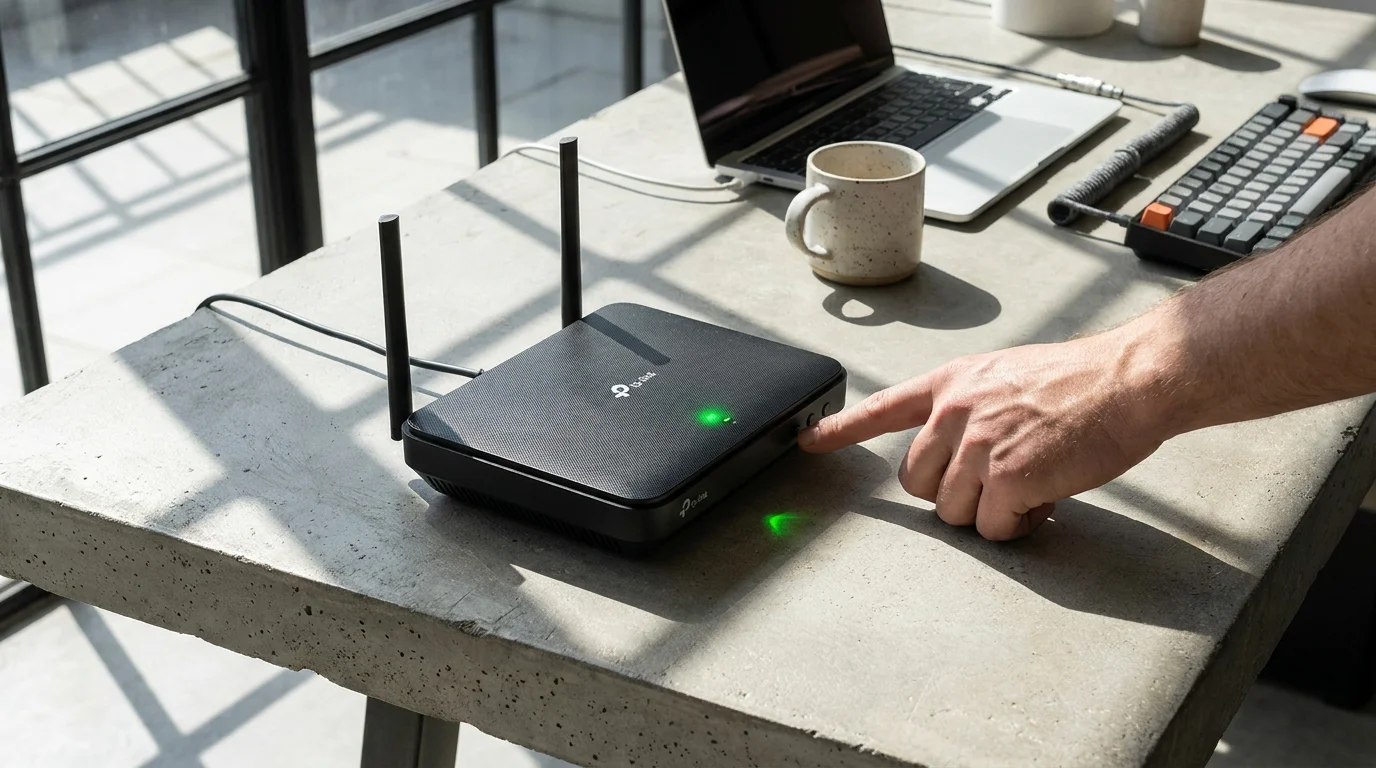
A pulsating green LED status light blinking against a matte black router casing cuts through the dim corner of your living room. You sit on the couch, waiting for a high-definition stream to buffer, watching that familiar spinning wheel stall at ninety-nine percent. It feels like a physical barrier—a wall of dense drywall or brick swallowing your signal whole.
The immediate impulse is to throw money at the frustration. Tech storefronts and retail packaging urge you to purchase three-piece mesh systems, promising whole-home coverage for hundreds of dollars. But your home did not suddenly get larger, and your fiber or cable line did not suddenly slow down.
Instead, the invisible airspace inside your home is simply choking on its own width. When you unpack modern gigabit home internet, your hardware arrives configured for lab conditions rather than the crowded reality of a residential neighborhood. The fix does not live inside an expensive cardboard box at the electronics store; it sits quietly inside your router’s administrative menu.
Understanding how your wireless frequencies negotiate space turns a finicky, temperamental connection into an unshakable home networking backbone without spending a single dime.
The Highway Metaphor: Why Wider Lanes Attract More Crashes
Modern dual-band routers, especially popular workhorses like TP-Link Archer models, ship with default settings tuned to win synthetic speed benchmarks. Out of the box, their 5GHz radios frequently attempt to broadcast at a channel width of 160MHz or dynamic auto-switching modes. On paper, doubling the lane width sounds ideal for raw data throughput.
Think of wireless spectrum not as an open pipe, but as a multi-lane highway running through your floorboards. When your router claims a massive 160MHz swath of frequency, it is effectively driving an oversized semi-truck across four lanes at once. If even a single neighbor’s baby monitor, smart television, or competing Wi-Fi beacon clips into that oversized lane, your router slams the brakes and drops packets to prevent data corruption.
- Samsung Galaxy Tab S10 Ultra recycles identical display panels leaving buyers with minimal upgrades
- iPhone Stolen Device Protection blocks rogue passcode thieves from locking iCloud accounts instantly
- Google Pixel Adaptive Connectivity traps cellular radios in constant search draining warm batteries
- Notion AI workspace databases transform chaotic meeting audio files into tidy task lists without messy clutter
- PS5 Pro hardware launches require high-bandwidth HDMI 2.1 displays to stop choppy visual stutter
This packet loss manifests on your devices as phantom dead zones, micro-stutters during video calls, and endless buffering circles. By stepping down to a disciplined 80MHz channel width, you trade an unnecessary theoretical burst speed for immaculate stability. You clear the debris from your local airwaves, giving your traffic a clean, uninterrupted path to travel through walls.
The Field Reality: A Quiet Fix in Suburban Dallas
Marcus Vance, a 42-year-old network systems technician based in Dallas, spends his working hours troubleshooting enterprise infrastructure and his weekends helping friends fix their home setups. In a neighborhood where nearly every home had upgraded to symmetrical gigabit fiber, Marcus noticed an epidemic of neighbors installing expensive multi-node mesh units, only to complain that their connection felt worse.
“Everyone assumed their walls were suddenly radio-proof,” Marcus noted while inspecting a neighbor’s struggling Archer AX55. “In reality, seven routers on the same block were all screaming across the exact same wide channel blocks, stomping all over each other’s signals. We locked his 5GHz radio down to 80MHz on an uncluttered channel, and his back-patio dead zone vanished in thirty seconds.”
Tuning for Your Living Space: Three Wireless Profiles
Every home presents a unique radio environment. Applying a single blanket configuration rarely yields the best performance across distinct architectural styles and living environments.
1. The High-Density Apartment or Condo
In multi-family buildings, dozens of competing access points share physical walls. If you leave your Archer router on default automatic settings, it constantly hops between channels, creating micro-disconnects throughout the day. Locking your 5GHz spectrum to channel 36 or 149 with an 80MHz width prevents your radio from colliding with the dynamic channel hopping common in ISP-provided hardware.
2. The Sprawling Single-Story Suburban Home
Square footage introduces attenuation through timber, tile, and kitchen appliances. While 5GHz provides unmatched speed, its physical wavelength struggles to penetrate dense materials compared to lower frequencies. Pairing an 80MHz channel width with enabled Beamforming allows your Archer router to focus directional energy straight toward your primary devices rather than scattering it equally into empty crawlspaces.
3. The Smart-Device Heavy Household
When you have dozens of smart plugs, light bulbs, and sensors, your 2.4GHz band can quickly become overloaded. Separate your network bands entirely by giving your 2.4GHz and 5GHz networks distinct names (SSIDs). Reserve the 2.4GHz network exclusively for low-bandwidth smart home accessories locked at 20MHz width, while keeping your laptops, phones, and streaming hardware on the clean 80MHz 5GHz band.
The Five-Minute Channel Calibration
You can execute this optimization through any standard web browser on a computer or tablet connected to your local network. You do not need specialized networking software or terminal commands.
- Access the Web Portal: Open a browser window and navigate to
192.168.0.1ortplinkwifi.net. Enter your local administrator password. - Navigate to Advanced Wireless: Select the Advanced tab along the top navigation bar, then click Wireless followed by Wireless Settings in the left-hand menu.
- Adjust the 5GHz Band: Locate the 5GHz configuration section. Change the Channel Width dropdown from ‘Auto’ or ‘160MHz’ directly to 80MHz.
- Assign a Static Control Channel: Switch Channel from ‘Auto’ to a dedicated non-DFS channel such as 36, 44, 48, 149, or 157.
- Save and Cycle: Click Save at the bottom of the page. Allow the router sixty seconds to restart its internal radio transmitter.
Tactical Toolkit:
- Admin URL:
http://192.168.0.1orhttp://tplinkwifi.net - Optimal 5GHz Channel Width: 80MHz (Avoid 160MHz in congested neighborhoods)
- Optimal 2.4GHz Channel Width: 20MHz (Prevents sideband bleeding)
- Reliable 5GHz Channels (US): 36, 40, 44, 48, 149, 153, 157, 161
Reclaiming Calm from the Invisible Ether
Technology often pushes an unspoken narrative that frustration can only be cured with consumption. When a video call drops or a download crawls, marketing algorithms are quick to recommend hardware upgrades, signal boosters, and mesh packages designed to overpower the problem with brute force.
True performance, however, comes from understanding the physics of your space. By curating your radio environment and deliberately narrowing your broadcast channels, you transform a chaotic signal landscape into a precise, reliable stream of data. The quiet satisfaction of fixing your network in five minutes without spending a dime reminds you that control over your home technology starts with insight, not an invoice.
“True network stability is never about broadcasting the loudest signal; it is about finding the clearest channel to speak in.”
| Key Point | Detail | Added Value for the Reader |
|---|---|---|
| Default Channel Width | 160MHz or Auto dynamic width | High peak speed on paper, but causes severe interference in dense neighborhoods. |
| Calibrated Channel Width | Locked at 80MHz for 5GHz radios | Eliminates packet drops, stabilizes video streams, and clears dead zones without extra hardware. |
| Static Channel Selection | Channels 36–48 or 149–161 | Prevents mid-day disconnects caused by the router constantly searching for open frequencies. |
| 2.4GHz Optimization | Fixed 20MHz width on separate SSID | Isolates smart home sensors and prevents them from degrading high-speed device bandwidth. |
Frequently Asked Questions
Will reducing channel width from 160MHz to 80MHz slow down my download speeds?
For virtually all real-world tasks, no. An 80MHz channel easily delivers real-world throughput between 500Mbps and 700Mbps, which exceeds what most streaming, gaming, and working applications require while providing significantly lower latency and zero packet loss.Why do routers default to 160MHz if it causes so many buffer issues?
Manufacturers want to advertise the highest theoretical top-line speed on retail packaging. These numbers are recorded in shielded isolation chambers with zero outside wireless traffic, which does not reflect the reality of modern residential neighborhoods.Should I still buy a mesh network if my home is over 3,500 square feet?
If physical distance and thick structural materials like brick, plaster, or concrete attenuate the signal over large distances, a wired backhaul mesh system may help. However, try locking your existing router to 80MHz first; many dead zones are caused by interference rather than lack of broadcast range.What is a DFS channel and why should I avoid it?
Dynamic Frequency Selection (DFS) channels share frequency space with radar systems like airport weather tracking. If your router detects a radar pulse on a DFS channel, it instantly drops your connection and changes frequencies, causing sudden disconnects during calls or gaming.Do I need to reboot all my connected devices after making this change?
Most modern phones, tablets, and laptops will automatically reconnect to the refreshed 5GHz radio within thirty seconds. If a specific device fails to see the network, toggling its Wi-Fi off and on will immediately latch onto the newly configured channel.