The harsh fluorescent hum of the mobile carrier store at seven o’clock on a Tuesday evening has a distinct rhythm. You peel away the stiff, protective plastic from a pristine screen, smell the faint chemical scent of fresh silicone packaging, and hand over your scuffed trade-in device across the counter. The retail clerk assures you that everything is safely attached to your account, presses a few buttons to wipe your old hardware clean, and hands you your receipt.
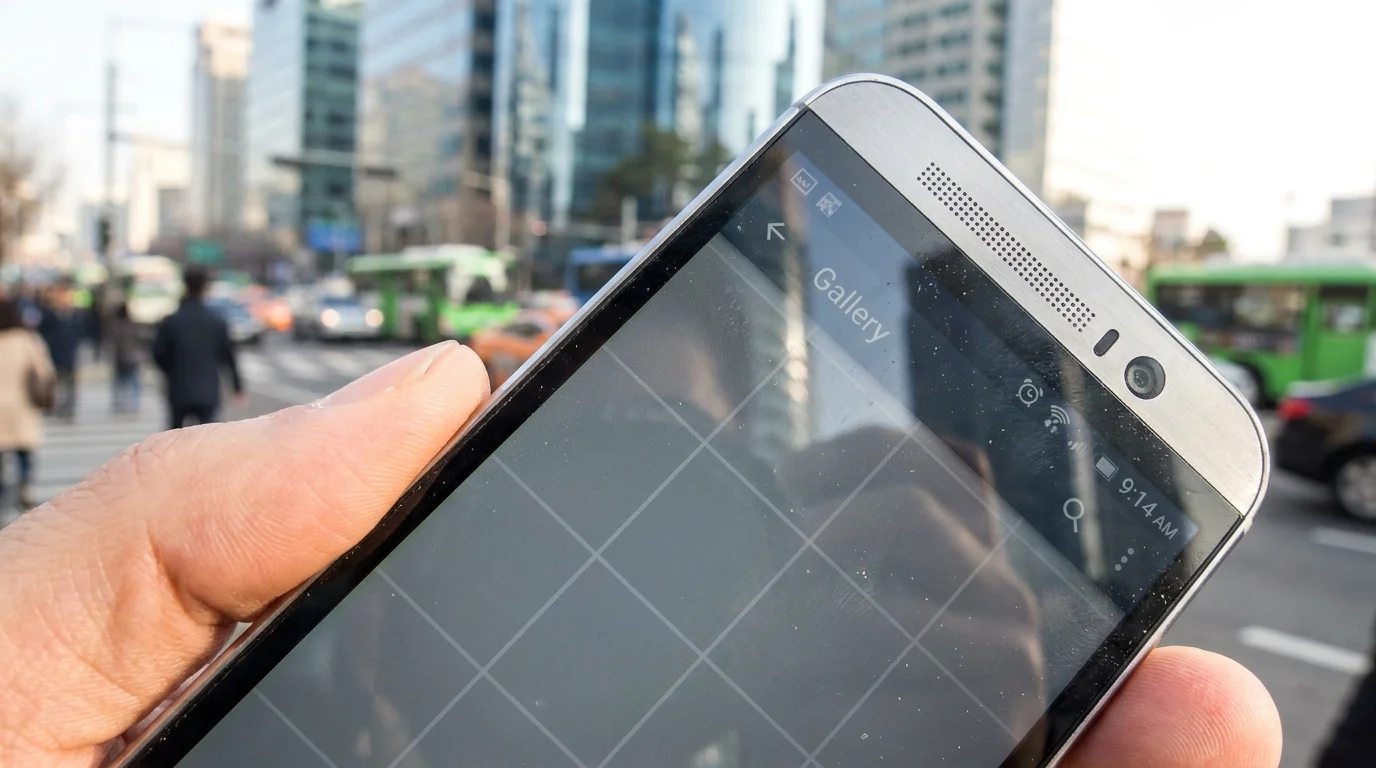
Yet, when you finally sit down on your living room couch and open your photo library, an unsettling quiet settles in. Instead of your neatly cataloged albums, school recitals, and years of road trips loading instantly, you stare at a grid of blank grey thumbnail boxes that refuse to populate. The local folder hierarchy you spent seasons organizing on your previous device has evaporated into a flat, disorderly timeline.
This silent panic is one of the most widespread hardware transition traps in modern personal computing. What feels like an automated safety net often behaves like an aggressive file-mirroring protocol, catching thousands of people off guard during rushed phone upgrades.
The Two-Way Mirror: Why Syncing Is Not an Archive
Most consumer operating systems blur the line between two fundamentally different file concepts: synchronized mirroring and permanent archival storage. When you enable automated gallery sync on your smartphone, you are not placing your images into an untouchable, fireproof digital safety deposit box. Instead, you are building an active two-way mirror.
When you edit, reorganize, or delete an image on a synced device, that command ripples across every server and linked screen in real time. If an automated process hiccups during a hurried migration or if you manually clear out space on an older handset before its trade-in wipe, the cloud interprets that removal as an intentional deletion. The reflection simply vanishes from both sides of the glass.
Worse still, automated backup protocols prioritize raw image files while routinely ignoring your local device folder structures. The custom sub-albums you built directly on your phone’s internal storage—receipts, project folders, family sub-groups—are frequently stripped away, dumping tens of thousands of unsorted snapshots into a chaotic, monolithic scroll.
- Roku streaming sticks force noisy video banners across messy home screen layouts
- iPad Air displays trigger stinging eye strain unless users cap high refresh rates
- Chase Bank fraud alerts spoof caller IDs trapping frantic account holders
- Galaxy Buds2 Pro ear tips restore muffled audio clarity after clearing stubborn wax buildup
- Telegram local media cache blocks phone storage by hoarding gigabytes of bloated video data
The Specialist’s Warning on Rushed Upgrades
Marcus Campbell, a 42-year-old independent data recovery technician based in Austin, Texas, handles dozens of panic-stricken phone owners every release cycle. “People walk into trade-in counters assuming their cloud drive is a detached storage attic,” Campbell explains while inspecting clean-room drive platters. “They hit ‘Delete from Device’ or agree to a fast factory wipe before confirming that the cloud holds raw, high-resolution master copies rather than compressed stream previews. By the time they realize their local albums never mapped to the cloud side, the original device has already been wiped and sent to an off-site refurbisher.”
The distinction between streaming access and cold data persistence is rarely clarified on sales floors. When bandwidth conservation settings are active, your phone may keep lightweight thumbnails locally while the master image lives remotely, meaning an interrupted transfer leaves you with missing metadata and unlinked local directories.
Mapping the Failure Points Across Migration Styles
Understanding where automated transfers break down depends heavily on how you interact with your phone’s internal storage.
The Folder Curator
If you rely on manual on-device folders created through third-party file managers or camera modes, cloud sync engines rarely preserve these pathways natively. While the pictures themselves might reach the cloud, their association with your physical device albums is discarded during a fresh device setup, forcing you to rebuild years of categorization from scratch.
The Fast Trade-In Switcher
When swapping handsets directly at a store register, transfer speeds are choked by crowded public Wi-Fi networks. If you power down and wipe your outgoing handset before the cloud service completes its background upload queue, non-synced photos and full-resolution video masters are permanently scrubbed with the hardware.
The Cross-Platform Migrator
Moving between iOS and Android introduces conflicting sync protocols. Apple’s native file management handles media flags differently than Google’s cloud architecture. Running concurrent sync systems often results in duplicate, broken thumbnails or missing location metadata if permissions are interrupted midway through the initial sync pass.
The Pre-Transfer Verification Protocol
Protecting your visual history requires taking deliberate, manual control before any store clerk touches your hardware. Follow this measured verification sequence before handing over any device:
- Check the Web Dashboard Directly: Open a desktop browser in private browsing mode, log into your cloud account, and verify that your latest snapshots exist as full-resolution master files, not just cached thumbnails.
- Audit the Background Upload Queue: Open your sync app, tap your account profile, and ensure the status displays a green checkmark reading ‘Backup complete’ rather than ‘Backing up items’ or ‘Waiting for Wi-Fi’.
- Execute a Cold Physical Export: Connect your device via USB cable to a computer or external SSD. Copy the physical ‘DCIM’ and ‘Pictures’ directories directly to external silicon before initiating any cloud migration.
- Verify the ‘Free Up Space’ Command: Never manually select and delete photos from your native camera roll to clear storage. Use only the dedicated ‘Free up space’ utility within your cloud settings, which verifies cloud copies before clearing local cache.
The Tactical Toolkit
Before initiating any trade-in or device reset, keep these precise technical baselines in mind:
- Bandwidth Threshold: Ensure you are on an unmetered Wi-Fi connection with at least 15 Mbps upload speed; congested public store networks routinely pause media transfers silently.
- Battery Buffer: Maintain at least 60% battery life or keep the device plugged into wall power; low-power modes immediately suspend background media uploads.
- Takeout Verification: Run an automated archive request via Google Takeout 48 hours prior to your hardware swap to generate downloadable .zip archives of all raw camera files and associated JSON metadata.
Reclaiming Digital Permanence
Smartphones have transitioned from mere communication tools into the primary repositories of our living history. Entrusting that entire visual narrative to a background automation toggle creates a fragile foundation. When you step back and treat cloud services as distribution pipelines rather than permanent archives, the anxiety of switching hardware dissolves.
True peace of mind does not come from a passive toggle hidden in an operating system sub-menu. It comes from maintaining deliberate boundaries between the active mirror in your pocket and the cold, unyielding archives you control directly.
“A cloud sync service is designed to show you what you have right now, not protect what you had yesterday.”
| Key Point | Detail | Added Value for the Reader |
|---|---|---|
| Sync vs. Backup | Sync mirrors active changes across all screens; backup creates static, unlinked duplicates. | Prevents accidental cloud deletion when clearing internal storage. |
| Local Album Stripping | Cloud sync engines flatten folder hierarchies into a single chronological timeline. | Saves hours of reorganization by prompting manual folder exports first. |
| Trade-In Wipe Risk | Factory resetting an unsynced device permanently deletes non-uploaded masters. | Ensures full photo fidelity before releasing older hardware to carriers. |
Frequently Asked Questions
Why did my custom device albums disappear on my new phone?
Cloud sync services back up the raw image files to a single chronological stream rather than preserving the local folder structure of your previous phone. You must recreate albums manually or restore them from a direct physical computer backup.If I delete a photo from my phone, does it delete from Google Photos?
Yes, if sync is enabled, deleting a photo from your camera roll deletes it from the cloud and all connected devices. Use the in-app ‘Free up space’ feature instead to remove only the local file while keeping the cloud copy intact.How can I confirm my photos are fully backed up before trading in my old phone?
Log into your cloud account from a computer browser. If you can view and download your full-resolution photos there, they are safely backed up independent of your physical handset.Does switching from Android to iPhone break Google Photos sync?
The service functions across platforms, but iOS background execution rules may pause uploads if the app is closed. You must open the app regularly on iOS to complete large upload queues.Can I recover photos if my old phone was already factory reset?
Once an encrypted modern smartphone is factory reset, local data cannot be recovered. However, any images that successfully finished syncing prior to the reset will remain accessible via your cloud account online.