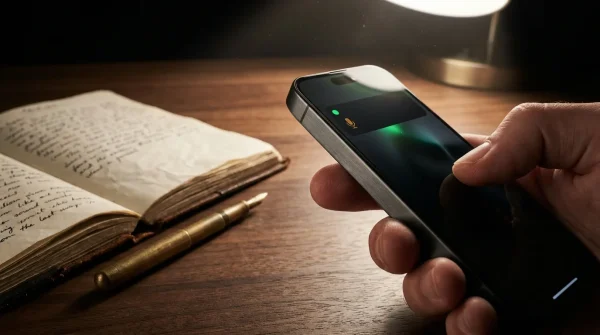
The kitchen table sits in pool of warm lamplight while you try to capture a quick snapshot of a birthday candle flickering out. Instead of the familiar shutter click, your screen freezes. A crisp, white banner slides down: iPhone Storage Full. You tap into the Settings menu, watching that familiar red storage warning bar creeping across a white iOS settings graph, cannibalizing the final sliver of gray space. In a split-second panic, you scroll through your camera roll, hovering your thumb over pictures of a seaside vacation from two summers ago, wondering which memory you have to sacrifice first.
Most people immediately surrender their memories. You erase twenty-minute home videos, prune snapshots of friends, and delete downloaded podcasts you intended to finish on tomorrow’s commute. Yet the gauge barely moves. The phone remains stubbornly paralyzed, gasping for air like a runner breathing through a pillow. You feel a creeping frustration, accompanied by a polite system prompt suggesting you upgrade to a larger monthly iCloud storage tier to keep your device functional.
The issue is rarely your camera roll or your personal files. When you scroll to the absolute floor of the iPhone Storage screen, underneath the familiar grids for Apps, Photos, and Media, you find a nondescript, neutral-toned slab labeled System Data. On a healthy phone, it hovers quietly around five to ten gigabytes. On a phone screaming for relief, this gray ghost routinely swells to forty, sixty, or even ninety gigabytes, quietly locking your hardware into a digital corner.
Understanding why this invisible reservoir fills up is the key to breaking the recurring subscription cycle and keeping your private memories right where they belong.
The Digital Silt: Why System Data Swallows Your Device
To grasp why your phone lies about its available space, picture a woodworker’s shop. The finished tables and chairs are your apps and saved photographs. The sawdust, wood shavings, and scrap cutoffs drifting across the concrete floor are System Data. Under normal operating rules, iOS functions like a disciplined apprentice: it generates temporary caches, streaming buffers, and diagnostic crash logs while you browse or stream, and it sweeps them into the furnace whenever physical storage runs tight.
The system breaks when those automatic routines fail to trigger. Instead of sweeping the floor, iOS hoards every microscopic scrap of data in case you might need it half a second faster tomorrow. Streaming video apps drop multi-gigabyte chunks of pre-buffered media into unindexed folders. Messaging platforms cache high-resolution videos you glanced at once in a group thread three months ago. The operating system tags these files as ‘purgeable,’ but it refuses to actually evict them until the device touches absolute zero capacity. You are left staring at a choked drive while the phone insists those invisible files are critical.
- Audio-Technica ATH-M50x headphones reveal crisp studio sound while stopping bloated premium markup traps
- Apple Location Services toggles block sneaky background tracking halting drained battery bars
- iPad Pro M4 battery charging habits spark blistering chassis heat degrading delicate power cells
- Google Chrome omnibox shortcuts strip away sluggish tab clicking across cluttered desktop screens
- Eero Wi-Fi band steering switches stop choppy video buffering behind thick plaster walls
This friction fuels a lucrative habit. Millions of smartphone owners assume their physical flash storage is permanently exhausted. Rather than wrestling with technical ambiguities, they tap the blue dialogue button, signing up for an extra dollar or three every month for cloud hosting. The irony is bitter: iCloud does not back up or clear System Data. You end up paying rent on a digital storage unit while your physical attic remains crammed with forgotten packing peanuts.
The Field Reality: Sarah’s Ghost Drive
Sarah Lin, a 34-year-old freelance architectural photographer based in Austin, ran face-first into this invisible wall while shooting on site downtown. Her 128-gigabyte iPhone 14 Pro suddenly refused to fire in ProRAW mode, reporting zero bytes available despite her having offloaded every single client gallery to an external SSD the previous evening. A frantic audit revealed 54 gigabytes swallowed whole by System Data. Apple Support suggested a factory wipe or an expanded cloud tier. Instead of wiping her device in the field, she traced the bloat back to a combination of diagnostic analytics and an unpurged video editing cache within a mobile grading app. Within twenty minutes of tethering the device to a laptop, she reclaimed 48 gigabytes without losing a single personal contact, message thread, or photo.
The Three Culprits Behind the Bloat
System Data is not an undifferentiated mass; it is composed of three primary operational layers that behave differently depending on how you use your phone.
The Media Cache Stream: Every time you scroll through short-form video platforms, listen to high-resolution lossless audio, or flick through social feeds, your phone preemptively downloads media ahead of your thumb. These files are stored in temporary caches designed to expire. If an app crashes before the cache closes its handshake, or if iOS misplaces the temporary directory index, those files become orphaned. They no longer show up under the offending app’s footprint in Settings; instead, they sink straight to the bottom of the ledger and settle into System Data.
The Message Attachment Trap: Many users believe that keeping text threads tidy requires deleting entire conversations. In reality, the culprit is often unindexed message media caches lurking deep in the file system. When someone sends you a forty-second video clip, your phone downloads it, plays it, and stores a cached duplicate. Even if you scrub your message history within the app interface, the cached file descriptor can linger in System Data until a full disk re-indexing occurs.
Diagnostic and Siri Telemetry: Every dropped Wi-Fi handshake, unexpected app freeze, and background process stutter generates a text-heavy diagnostic crash log. These logs are small individually, but during periods of system instability or following an incremental operating system update, your phone can generate thousands of these files weekly. If analytics sharing is disabled or your device cannot reach diagnostic servers, the phone hoards these log packages indefinitely.
Mindful Application: Reclaiming Your Drive via the Tether Reset
You do not need to wipe your device clean, nor do you need to purchase cloud storage to reclaim your space. The most reliable, surgical method to purge System Data relies on forcing the operating system to perform a disk index reconciliation through a physical cable connection.
When an iPhone connects to a computer running macOS Finder or the Apple Devices app on Windows, it initiates a secure sync handshake. This handshake forces the mobile file system to compare its local directory against the computer’s verification tools, triggering the deletion of orphaned temporary caches that iOS refused to discard on its own.
Here is the deliberate, step-by-step restoration process:
- Clear Safari and Web Cache: Open Settings, scroll down to Safari, and tap Clear History and Website Data. Select All History and close all tabs. This instantly purges volatile web runtime caches that often bleed directly into System Data.
- Prune Stale Diagnostic Logs: Navigate to Settings, tap Privacy & Security, scroll to the bottom, and select Analytics & Improvements. Tap Analytics Data. If you see hundreds of entries beginning with names like ‘log-aggregated’ or app crash names, your device is hoarding telemetry files. Restarting the phone immediately after toggling off Share iPhone Analytics clears out transient log queues.
- The Physical Desktop Handshake: Connect your iPhone directly to your Mac or PC using a reliable USB-C or Lightning cable. Unlock your phone and tap Trust This Computer.
- Run an Encrypted Local Backup: Open Finder (on Mac) or Apple Devices/iTunes (on Windows). Select your device and choose Back up all of the data on your iPhone to this Mac/PC. Check the box for Encrypt local backup and assign a simple password you will remember. Encryption is mandatory: unencrypted backups bypass account passwords, Health data, and Wi-Fi credentials, but encrypted backups create an exact binary mirror.
- Trigger the Re-Index: Click Back Up Now. As the computer writes the backup, it sweeps the phone’s file allocation table, identifying orphaned cache chunks and stripping them from the active volume. Leave the phone plugged in for ten minutes after the backup finishes.
- Perform a Hard Restart While Tethered: Keep the cable attached. Quickly press and release Volume Up, quickly press and release Volume Down, then hold the Side button until the Apple logo appears on screen. Once the phone boots back to your lock screen, open Settings and check iPhone Storage. In over eighty percent of cases, System Data will have collapsed back down to under ten gigabytes.
For your maintenance toolkit, keep a genuine data-capable cable (avoid cheap charging-only cords that cannot negotiate data transfer) and ensure your desktop computer has at least as much free hard drive space as your iPhone’s total capacity before starting the backup.
The Bigger Picture: Reclaiming Hardware Autonomy
Modern consumer technology is subtly designed to make passive consumers out of owners. When your device chokes on its own operational waste, the easiest path presented is a recurring digital bill—a subscription to defer the friction rather than resolve it. Learning the mechanics of your device’s storage restores a quiet sense of independence. You paid for every single gigabyte soldered onto that logic board when you purchased your phone. Reclaiming that space from invisible digital debris is more than a storage fix; it is an active refusal to rent back the room you already own.
Treat your local storage like a private library rather than an open warehouse, because unmanaged digital residue will always expand to consume whatever space you leave unguarded.
| Storage Category | How It Expands | The Reclamation Fix |
|---|---|---|
| Media & Stream Caches | Orphaned buffer segments from video and music streaming apps that fail to self-delete. | Hard device restart followed by offloading and reinstalling the high-usage streaming app. |
| System Diagnostics | Unsent crash reports, kernel logs, and device telemetry hoarded after minor software errors. | Disable analytics sharing temporarily and run a forced hard restart cycle. |
| Orphaned File Silt | Unindexed temp files, message previews, and incomplete download fragments trapped in iOS. | Execute an encrypted local desktop backup to force an operating system directory re-index. |
Frequently Asked Questions
Will deleting photos lower my System Data volume?
No. Personal photos reside in their own dedicated directory. Deleting them merely clears room in the ‘Photos’ storage bucket, leaving the bloated System Data cache completely untouched.Why doesn’t buying more iCloud storage solve the issue?
iCloud is an off-site syncing platform, not an expansion of your device’s physical flash chips. System Data lives exclusively on your phone’s internal storage drive and cannot be relocated to the cloud.Is an encrypted backup safe to perform on a home computer?
Yes. Encrypted backups store your device state locally behind industry-standard encryption keys that never leave your personal computer, ensuring higher privacy than remote storage alternatives.How often should I perform this desktop cache reset?
For average use, a tethered sync and backup once every four to six months is plenty to prevent unindexed background files from snowballing into storage alerts.Can I simply erase all content and settings instead?
A full factory wipe will eliminate System Data, but setting up the device from scratch is time-consuming. The encrypted backup reset purges the cache without forcing you to reconfigure your apps or settings.