The faint, low whir of your laptop fan settles into a steady rhythm while midnight ticks past. You are deep inside a spreadsheet or polishing the final sentences of a proposal, bathed in the soft glow of a crisp display. Then, without a sound or warning, an unsolicited pastel bubble slides out from the corner of your taskbar, suggesting you back up personal documents to a cloud trial or switch your default browser to Microsoft Edge.
It feels less like an operating system and more like a pushy store clerk hovering over your shoulder. You close the window, annoyed by the distraction, assuming it is just a routine notification you forgot to silence. In reality, that tiny promotional banner is the final visible link in a continuous chain of silent telemetry data transmissions running beneath your keystrokes.
Every time an application crashes, an icon sits unused, or a default file format opens, your workstation packages those micro-behaviors into structured packets. Windows treats your local machine not as an isolated haven of personal computation, but as an interactive broadcast node. The machine reads how you work, packages your habits, and feeds those signals back to remote servers to decide exactly which corporate reminder should interrupt your next work session.
The Two-Way Mirror of Modern Desktops
For decades, an operating system behaved like dry lumber. You bought the boards, assembled the desk, and whatever papers you laid out remained strictly between you and the grain of the wood. Today, your operating system functions more like a two-way mirror in an observation room, where every movement is indexed under the guise of system health diagnostics.
When setup screens encourage you to enable diagnostic reporting, they frame the choice around performance stability and automatic crash resolution. What they casually gloss over is how deeply diagnostic collection interlocks with consumer advertising profiles. Your machine quietly tallies how often you launch third-party tools, monitoring your peripheral habits to decide when you might be ripe for an upsell.
The system does not need to read your personal diary to profile your work habits. By logging your browsing defaults, your storage capacity thresholds, and how rapidly you dismiss native utilities, it constructs an intimate heat map of your software life. The intrusive taskbar prompts you see are simply the algorithm closing the loop on data you unknowingly provided during initial setup.
Marcus Vance, a forty-two-year-old network administrator in Columbus, Ohio, spent an entire Saturday afternoon running Wireshark packet captures across his home fleet. He noticed that even while machines sat idle on the lock screen, tiny HTTPS bursts continuously targeted diagnostic endpoints, immediately followed by registry changes in the local user profile that flagged specific promotional campaigns for desktop delivery.
- Pixel Watch 3 upgrades copy predecessor sensors without delivering promised battery jumps
- USPS tracking texts intercept private banking credentials through deceptive redelivery links
- Samsung One UI toggles cut background network searching to preserve battery bars
- iPhone 15 cameras trap muddy grain under raw 48MP shooting modes
- iPhone App Switcher force-closes drain battery bars through constant memory reloads
Adjustment Layers for the Private Workstation
Taking back control of your desktop does not require wiping your drive or switching overnight to an esoteric Linux distribution. Instead, you can treat your operating system like a home garden, pruning back invasive roots layer by layer until only the features you intentionally invited remain standing.
Depending on how you use your computer, you can dial in your diagnostic footprint to match your comfort level without breaking critical security updates or device driver patches.
For the Focused Professional
If your primary goal is eliminating mental clutter and halting workflow interruptions, you do not need to gut the system registry. You simply need to sever the pipeline between diagnostic data collection and the desktop advertising engine. Windows permits you to reduce diagnostic telemetry to the minimum permissible baseline, which strips out your application usage timeline while leaving basic hardware stability reports intact.
For the Local Storage Purist
Those who prefer keeping all data tethered to physical local drives can shut down the aggressive cloud-storage prompts entirely. By disabling diagnostic-driven tailoring, the operating system stops monitoring when your internal drive reaches eighty percent capacity, preventing the automated panic prompts that try to push monthly cloud subscription plans.
For the High-Performance Gamer
Background telemetry polling cycles consume micro-bursts of CPU scheduling and network bandwidth. Silencing these collection routines stops your machine from running diagnostic handshakes during competitive multiplayer lobbies, ensuring your network adapter dedicates its full queue to low-latency game packets rather than background telemetry harvests.
Mindful Application: Silencing the Diagnostics Engine
Neutralizing these intrusive behaviors requires traveling through several disconnected corners of the Settings application. Microsoft rarely groups telemetry and promotional banners in the same pane, scattering them across separate menus so users seldom turn off both.
Take ten quiet minutes to trace through these specific adjustment toggles. Work methodically through each layer, feeling the interface transform back into a calm, quiet instrument designed strictly to serve your commands.
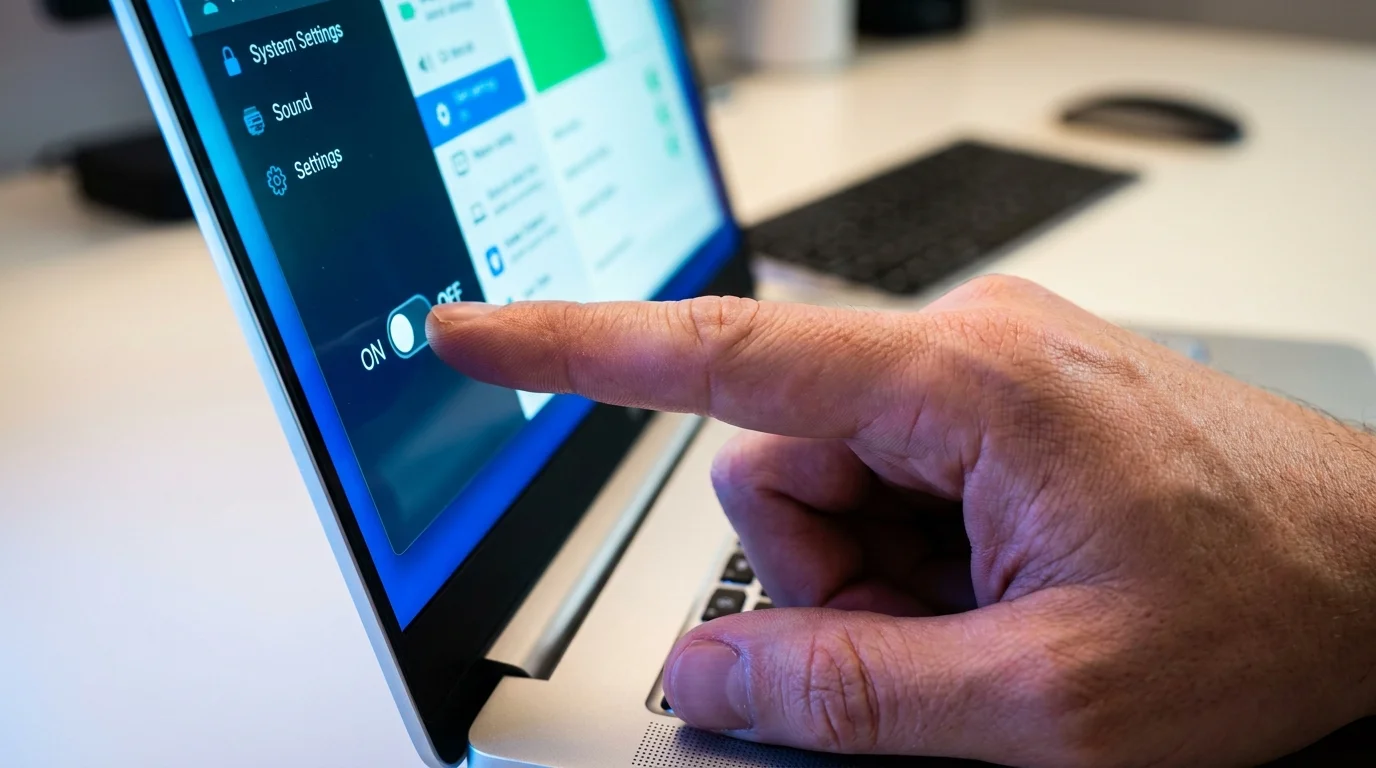
- Sever the Diagnostic Feeding Tube: Navigate to Settings, select Privacy & security, and click on Diagnostics & feedback. Open the Diagnostic data dropdown and shift the switch from ‘Send optional diagnostic data’ to the off position, ensuring only required operational metrics leave your machine.
- Kill Tailored Experiences: Scroll down within that exact same Diagnostics & feedback window. Locate the toggle labeled ‘Tailored experiences’—which explicitly permits your diagnostic data to fuel personalized product recommendations and tips—and switch it firmly to Off.
- Purge Diagnostic History: Just below Tailored experiences, click the Delete diagnostic data section and hit the Delete button to wipe whatever behavioral history currently sits stored in your local staging cache.
- Dismantle File Explorer Nags: Open any standard folder, click the three horizontal dots on the top ribbon, select Options, and head to the View tab. Scroll down to uncheck ‘Show sync provider notifications’ to stop cloud storage ads from appearing inside your file directories.
- Silence System Welcome Prompts: Go to Settings, choose System, click Notifications, and scroll to the very bottom to expand Additional settings. Uncheck all three boxes: ‘Show the Windows welcome experience’, ‘Suggest ways to get the most out of Windows’, and ‘Get tips and suggestions when using Windows’.
Your tactical toolkit for this transition requires zero third-party software downloads. All you need is the native Windows Settings application, an administrative local account profile, and five minutes of deliberate attention to systematically quiet your machine.
Reclaiming Machine Sovereignty
There is a distinct, tangible peace that returns to your workspace once these diagnostic channels run silent. The desktop ceases to feel like a commercial tenancy and returns to being your private workshop. You open your laptop in the morning knowing that the screen will display only what you placed there, without unsolicited popups vying for your credit card or attention.
Technology should behave like an honest hammer or a fountain pen: patiently waiting in the drawer until called upon, completely passive when idle, and utterly devoted to the hand that guides it. Turning off background diagnostics is more than a technical trick; it is a declaration of personal boundaries in an era where software constantly tests how much advertising you are willing to endure on hardware you already paid for.
The quietest computer is always the one that views its owner as an operator rather than an audience.
| Key Point | Detail | Added Value for the Reader |
|---|---|---|
| Optional Diagnostic Data | Shares application habits, browsing telemetry, and crash logs with remote servers. | Prevents the operating system from profiling daily app habits for targeted ads. |
| Tailored Experiences | Directly links raw system telemetry logs to taskbar popups and feature banners. | Stops persistent upsells for cloud subscriptions and default browser changes. |
| Sync Provider Notifications | Injects commercial banners directly into the native File Explorer file directory. | Restores a clean, uninterrupted file management workspace. |
Frequently Asked Questions
Will turning off optional diagnostics prevent me from receiving critical security updates?
No, your system will continue to receive all routine monthly security rollouts and driver updates without interruption. The toggle only restricts supplementary telemetry that profiles how you interact with software.Why does Windows turn Tailored Experiences back on after major updates?
Major annual feature updates occasionally reset specific telemetry flags back to default values. It is wise to run a quick three-minute check on your diagnostics menu whenever your computer completes a major version migration.Does disabling telemetry speed up my computer?
While it does not dramatically boost raw gaming frame rates, it eliminates intermittent background processor spikes and clears network queues that occasionally trigger while the system compiles local error reports.Can I completely eliminate all telemetry without third-party scripts?
Consumer editions of Windows require a baseline level of required diagnostic information to keep update pipelines operational. However, flipping these built-in toggles stops nearly all consumer tracking and kills desktop promotional banners entirely.Does this affect error reporting when an application crashes?
Basic crash reporting still works when software experiences critical failures. The system simply stops collecting detailed telemetry about what you were doing right before the application closed.