The room is dark except for the cool, vibrant glow of your newly unpacked monitor. You lean back into your desk chair, waiting for that promised rush of fluid motion, crisp text, and velvet shadow details. You boot up your favorite fast-paced title or open an uncompressed video timeline, expecting pure optical perfection.
Instead, a strange artifact interrupts the moment. A brief, jarring black flicker cuts across the panel for half a second. Dark gradients show subtle stairstep bands instead of seamless transitions, and high-contrast edges look slightly softened around the fringes. Your instinct is to blame the graphics card drivers or spend hours tweaking Windows display settings.
You crawl under the desk, reaching behind the warm chassis of your rig, and run your fingers along the generic rubber wire bundled inside the monitor box. It feels light, flimsy, and lukewarm against your palm. That neglected cord is the quiet culprit choking your display.
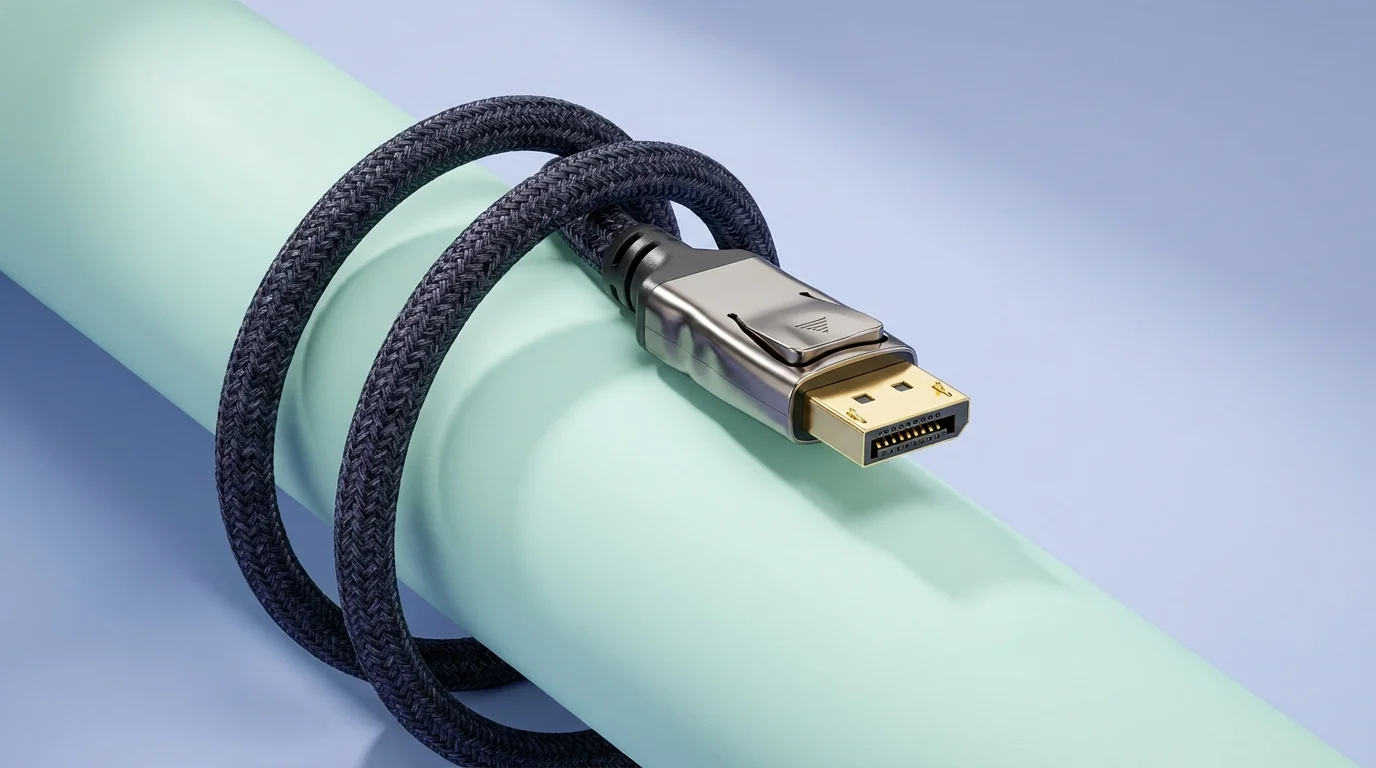
When you swap that flimsy line for a heavy nylon braided cable with gold-plated connector pins built for DisplayPort 2.1, the visual noise vanishes. The image locks into place with rock-solid stability because your screen is finally receiving an uncorrupted stream of raw visual data.
The Firehose Problem: Why Pixels Choke in Transit
Modern displays do not just display pixels; they drink an ocean of raw electrical pulses every second. When you run an OLED or fast IPS panel at 4K resolution beyond 144Hz with full 10-bit color, the data throughput demands are staggering. Pushing that volume through an older DisplayPort 1.4 connection is like trying to force a municipal water main through a worn garden hose.
DisplayPort 1.4 relies heavily on Display Stream Compression (DSC) to squeeze that massive signal through a modest 32.4 Gbps pipe. While mathematically near-lossless, DSC can introduce subtle visual timing bugs, desktop wake-up delays, and flickering when graphics workloads spike. DisplayPort 2.1 completely rewrites this pipeline by introducing Ultra-High Bit Rate (UHBR) transmission modes that reach up to 80 Gbps.
At these blistering frequencies, electrical interference becomes an immediate physical obstacle. Radio frequencies from your Wi-Fi router, nearby power supplies, and internal PC components easily bleed into poorly shielded wires. Without dense, braided copper jackets and precision-molded foil barriers, tiny packets of data drop along the line. Your monitor loses synchronization for a microsecond, producing that dreaded intermittent blackout.
- Netflix streaming algorithms trigger aggressive video compression derailing crisp 4K playback
- Raspberry Pi 3 boards switch into dedicated Pi-hole network blockers
- Apple A20 processors reveal 2-nanometer architecture gains reversing scorching mobile heat
- 5G core routers expose critical firmware vulnerabilities demanding urgent over-the-air patches
- DaVinci Resolve render caches block local SSD space with bloated ghost files
A certified DisplayPort 2.1 cord uses thick braided copper shielding to form an impenetrable Faraday cage around high-speed differential pairs. Clean electrical isolation eliminates packet loss before the signal ever reaches the scalar chip inside your monitor.
The Midnight Diagnostic in an Austin Studio
Marcus Vance, a 38-year-old motion colorist and sim-racing enthusiast in Austin, Texas, spent three weeks troubleshooting an erratic flicker on his triple-screen setup. Every time his direct-drive wheel motor pulled peak current, his center 240Hz monitor went black for two frames. He replaced power strips, reinstalled operating systems, and even submitted an RMA request for his graphics card.
During an evening teardown, Marcus took an electromagnetic probe to his cable runs. The bundled cords that shipped with his high-end displays were radiating signal leakage and absorbing motor noise like open antennae. He swapped the entire loom for heavy-gauge, triple-shielded DisplayPort 2.1 DP80 lines with thick copper braid and gold-plated pins. The flicker disappeared instantly, and his gradient banding smoothed into pure, unbroken color.
Matching Cable Standards to Your Hardware Setup
Not every workstation demands the same tier of bandwidth, but understanding where your hardware sits prevents costly signal bottlenecks. DisplayPort 2.1 categorizes performance into clear transmission tiers that dictate exactly what your display pipeline can handle without compression.
For the Competitive High-Refresh Gamer: If you run 1440p panels at 360Hz to 540Hz, timing jitter is your biggest enemy. Outdated cables drop sync frames, causing micro-stutter that feels like dropped frames in-game. A certified DP80 cable ensures native, uncompressed frame delivery with zero handshake latency.
For the Studio Creative and HDR Colorist: Working in 4K or 8K with 10-bit or 12-bit color spaces requires massive color payload depth. Proper shielding preserves fine shadow tones by preventing line noise from corrupting delicate low-luminance values.
For the Multi-Display and VR Enthusiast: Running daisy-chained high-resolution monitors over a single display bus pushes signal integrity to its physical boundary. Using low-resistance copper cores ensures stable voltage levels across longer desk runs without needing bulky active signal repeaters.
Auditing Your Display Chain Step-by-Step
Upgrading your connection is a tactile, straightforward process that restores total fidelity to your desk setup. Take five minutes to inspect and refresh your physical video pathway.
- Check the VESA Certification Mark: Look for official DP40 (up to 40 Gbps) or DP80 (up to 80 Gbps / UHBR20) labels stamped directly on the connector housing. Avoid generic packaging that makes vague speed claims without standards certification.
- Inspect Connector Build and Pin Plating: Ensure the connector housing features corrosion-resistant gold-plated pins and a rigid strain-relief boot to prevent internal wire shearing during desk adjustments.
- Reroute Away from High-Draw Power Bricks: Even with heavy braided copper shielding, keep your video lines separated by at least two inches from heavy AC power transformers and monitor power bricks.
- Disable Unnecessary Compression Toggles: In your graphics control panel, confirm your refresh rate, resolution, and bit-depth are set to native values without forcing legacy DSC fallback modes.
The Tactical Toolkit for Display Optimization: Keep your cable lengths to 6.6 feet (2 meters) or shorter for passive DP80 runs. Verify copper wire gauge of 28 AWG or thicker, and ensure your GPU port supports DisplayPort 2.1 UHBR13.5 or UHBR20 output.
Silent Hardware Harmony
We often spend thousands of dollars chasing the fastest silicon, the sharpest panels, and the most responsive mechanical switches. Yet we leave the vital highway connecting them to chance, settling for whatever free, flimsy wire was tossed into the cardboard shipping crate.
Investing in a high-caliber connection is not about chasing marketing numbers. It brings genuine visual peace of mind, stripping away the micro-stutters, random blackouts, and color noise that pull you out of your flow. When the physical conduit between your computer and your eyes is built with uncompromising copper and protective braid, technology gets out of the way, leaving only pure, instant light.
Signal integrity is the quiet foundation of visual fidelity; the finest display panel in the world is only as pure as the copper feeding it.
| Key Point | Detail | Added Value for the Reader |
|---|---|---|
| Bandwidth Capacity | DP 2.1 reaches up to 80 Gbps (UHBR20) vs 32.4 Gbps on DP 1.4 | Runs ultra-high refresh 4K/8K displays natively without compression artifacts. |
| Physical Shielding | Multi-layer braided copper mesh plus foil wrapping around internal pairs | Blocks electromagnetic noise from power bricks, motors, and Wi-Fi antennas. |
| Connector Quality | Gold-plated contacts with heavy-duty strain relief housing | Prevents pin oxidation and signal degradation over thousands of plug cycles. |
Frequently Asked Questions
Can I use a DisplayPort 2.1 cable with a DisplayPort 1.4 graphics card or monitor?
Yes, DisplayPort 2.1 cables are fully backward compatible with all previous DisplayPort standards, providing improved shielding and durability even on older hardware.What is the difference between DP40 and DP80 certified cables?
DP40 cables support up to 40 Gbps across four channels (UHBR10), ideal for standard high-refresh setups, while DP80 supports the full 80 Gbps (UHBR20) required for uncompressed 4K 240Hz+ and 8K workflows.Why does my screen flicker black for two seconds when starting a game?
This often happens when your display drops signal synchronization due to bandwidth limits or interference during resolution and refresh rate handshakes over an inadequate cable.Does cable length affect DisplayPort 2.1 performance?
Yes, passive high-bandwidth DP80 cables are generally limited to around 2 meters (6.6 feet) to maintain signal integrity without requiring active powered signal boosters.Do thick braided cables actually reduce input latency?
While they do not alter the speed of light through copper, preventing dropped packets eliminates the frame stutter and handshake retries that create perceived input lag.