You settle onto the couch after a long day, waiting for the room to fill with the familiar acoustic weight of a favorite film. The floor lamps click off, the room dims to slate gray, and the display casts a cold blue hue across the floorboards. You hit play, anticipating the tactile thrum of low-end frequencies against your floorboards and the discrete sweep of sound moving past your ears.
Instead, the entire mix arrives thin and pinched, sounding like it is breathing through a pillow across the room. The subtle rustle of off-screen footsteps is gone, the dynamic swell of orchestral horns feels flattened into cardboard, and the room-filling presence you spent weekends tuning has suddenly collapsed into a narrow wedge.
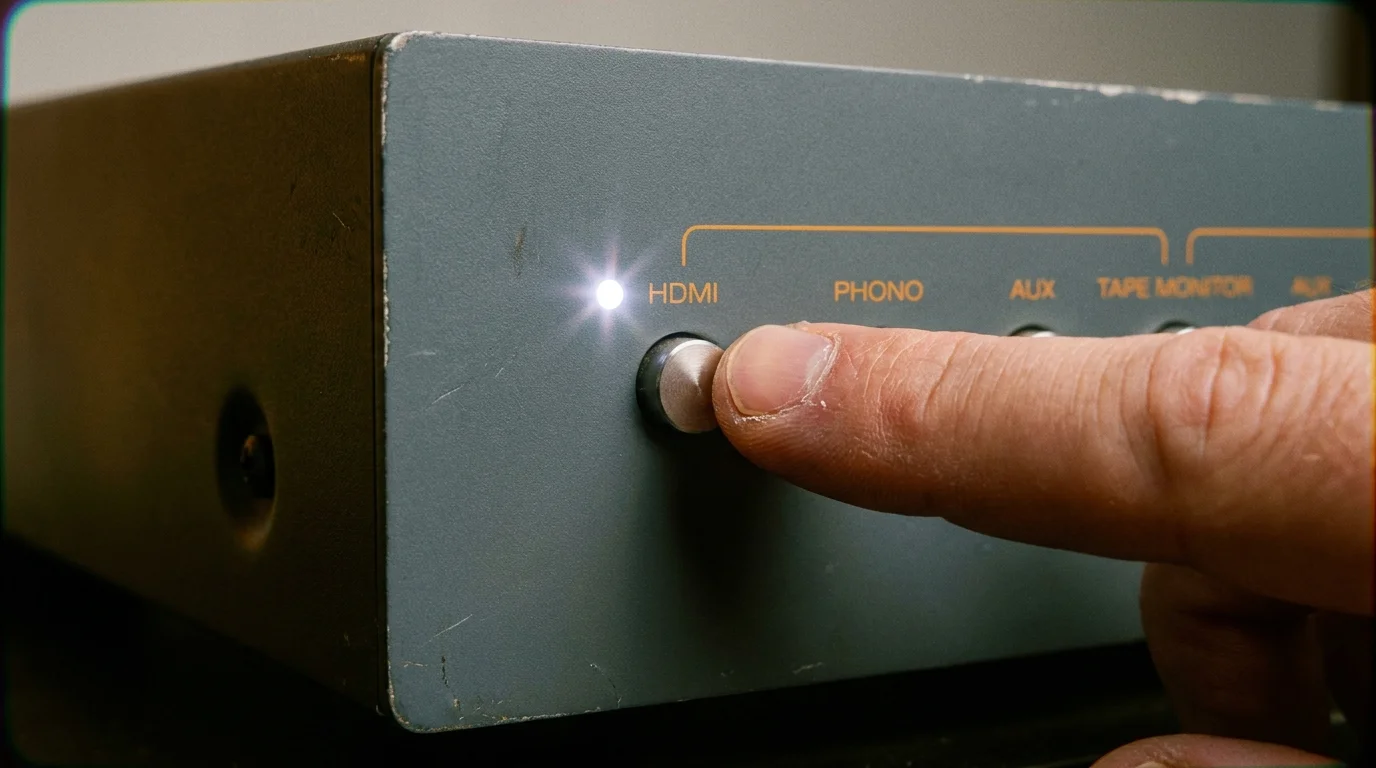
Down in the media cabinet, the blinking white HDMI indicator light on your soundbar or audio receiver stutters twice, hunting for a handshaking signal that never settles. Nothing physically shifted while you slept. The copper wires remain seated in their binding posts, and the eARC cable has not budged an inch. Yet your Apple TV 4K received an automated tvOS patch overnight, and your pristine acoustics vanished without a notification.
The Invisible Valet: When Automation Overrides Calibration
Modern streaming devices operate under a distinct corporate philosophy: solve every playback issue automatically, even if it means neutering sophisticated external hardware to appease the lowest common denominator. Think of it like a well-meaning hotel valet who repositions your driver’s seat, tilts your side mirrors, and turns your headlights to dim every time you hand over the key fob. The intent is convenience, but the result is disorientation.
With recent platform iterations, Apple introduced algorithmic audio processing adjustments designed to salvage muddy speech on bargain television panels. However, tvOS updates frequently force these features active across the board, quietly swapping your uncompressed multichannel stream or spatial bitstream for an aggressive, center-channel-dominated downmix.
Marcus Vance, a 43-year-old custom acoustic integrator based outside Denver, watches his service inbox fill up every time Cupertino pushes a point release to tvOS. “Clients call convinced their nine-channel power amplifier dropped a discrete processing board over the weekend,” Vance explains. “In ninety percent of those house calls, the gear is fine. The streaming box simply took it upon itself to rewrite the output protocol, trapping multi-thousand-dollar drivers inside a forced stereo container.”
- Nvidia RTX 5090 power cables spark urgent melting advisories across custom desktop builds
- Apple Trade In valuations plummet over tiny screen scratches unless owners clean chassis seams
- EVgo charging stations expose drivers to quishing scams through rogue pasted payment stickers
- Philips Hue smart bulbs drop network sync after power outages without proper power-on states
- Apple Focus Filters silence intrusive workplace app alerts while preserving urgent parent calls
The Output Layers: Where Your Sound Gets Intercepted
Restoring acoustic depth requires recognizing how your specific setup handles incoming audio packages. Depending on the pathway between the streaming puck and your ears, the firmware update wrecks acoustic balance in slightly different ways.
For the Dedicated Multi-Channel Receiver Array
Discrete surround systems rely on receiving pristine Linear PCM or original spatial metadata directly from the source. When tvOS updates reset your audio destination defaults, the box often re-engages internal software decoders that truncate low-frequency effects (LFE) and discard overhead height data, sending raw two-channel PCM to a receiver that tries to blindly upmix it back into false surround.
For the eARC Soundbar Setup
Modern soundbars with wireless subwoofers depend on seamless HDMI CEC handshakes to govern volume tracking and spatial positioning. When system updates switch audio defaults to television speakers or standard stereo fallbacks, the soundbar defaults to an uncalibrated virtual surround profile. This masks the native Dolby Atmos track, leaving dialog sounding shrill and the subwoofer completely detached from mid-bass impacts.
For Spatial Audio Headphone Listeners
If you switch between room listening and private listening sessions, background firmware shifts can anchor personal audio profiles across all output devices. When tvOS mistakenly leaves headphone optimization profiles enabled on your primary HDMI output, the dynamic range of physical speakers drops precipitously, producing severe volume swings between whispers and explosions.
Mindful Restoration: Taking Back Your Signal Path
Regaining spatial fidelity does not demand buying new cables or running automated microphone room corrections again. You simply need to navigate past the automated defaults and restore direct control to your external processor.
The primary culprit hiding in recent firmware updates is the newly revised dialogue processing suite. While marketed as a speech clarity tool, leaving this setting permanently engaged forces your streaming box to dynamically compress the audio container, crushing peak dynamics before the sound ever leaves the HDMI port.
- Navigate to your Apple TV home screen, open Settings, and select Video and Audio.
- Scroll down to the Audio sub-menu and inspect your Audio Output assignment to confirm your external receiver or soundbar is actively pinned rather than defaulting to temporary AirPlay routing.
- Select Audio Format. If the system lists this as ‘Auto’, verify that Dolby Atmos remains toggled on beneath it.
- If your audio receiver fails to decode the signal, change Format to ‘On’ and manually select Dolby Digital 5.1 as an immediate diagnostic test to break the PCM handshake loop.
- Return to the main audio menu and locate Enhance Dialogue. Ensure this feature is set to Off for critical listening, as forcing it active strips out discrete spatial panning in favor of center-channel amplification.
The Tactical Audio Toolkit
Keep your diagnostic sequence straightforward: verify your HDMI 2.1 cable is seated firmly in an eARC-labeled port, ensure tvOS matches the native capability of your processor, and confirm your receiver’s front panel displays discrete multichannel decoding rather than stereo simulation modes.
The Intention of Sound
Home audio is inherently personal. It is one of the few corners of modern domestic life where precision, acoustic physics, and sensory escape intersect. When streaming platforms quietly downgrade your listening environment to streamline background software tasks, they treat your physical room as an afterthought.
Taking five minutes to peel back these automatic configurations does more than bring back explosive bass and crystal-clear sound effects. It returns deliberate control to your space, ensuring that when the room goes dark and the credits start rolling, you hear the story precisely as the creators intended.
The greatest enemy of high-fidelity sound is well-intentioned software that assumes your living room only has two tiny speakers.
| Key Point | Detail | Added Value for the Reader |
|---|---|---|
| Dialogue Compression | tvOS updates turn dialogue enhancement features on by default. | Disabling this toggle immediately restores full dynamic range and native spatial panning. |
| Handshake Drift | Firmware updates can break HDMI eARC handshake parameters. | Manually toggling the Audio Format setting forces the Apple TV to re-identify your receiver. |
| AirPlay Fallback | System patches occasionally route primary audio to secondary AirPlay links. | Pinning your physical HDMI output ensures uncompressed high-bandwidth audio streams. |
Frequently Asked Questions
Why does my soundbar sound tinny after a tvOS software update?
Updates often reset the audio engine to an automated speech-enhancement profile, which aggressively compresses dynamic range and limits discrete bass frequencies.Does turning off dialogue enhancement ruin voice clarity?
No. When listening through properly calibrated external speakers or soundbars, native multichannel mixes already separate dialogue tracks cleanly without artificial compression.Why is the HDMI indicator light blinking on my receiver?
A blinking light indicates that your receiver and Apple TV are struggling to agree on an audio handshake protocol, often because tvOS shifted output formats during an update.Should I set Apple TV audio format to Auto or Dolby Digital 5.1?
Leave it set to Auto with Dolby Atmos enabled for modern eARC gear. Only switch to Dolby Digital 5.1 if you are troubleshooting an older optical or ARC setup.How can I stop tvOS from altering my audio settings in the future?
Turn off automatic system updates under Settings > System > Software Updates. This lets you apply patches manually when you have time to check your settings afterward.