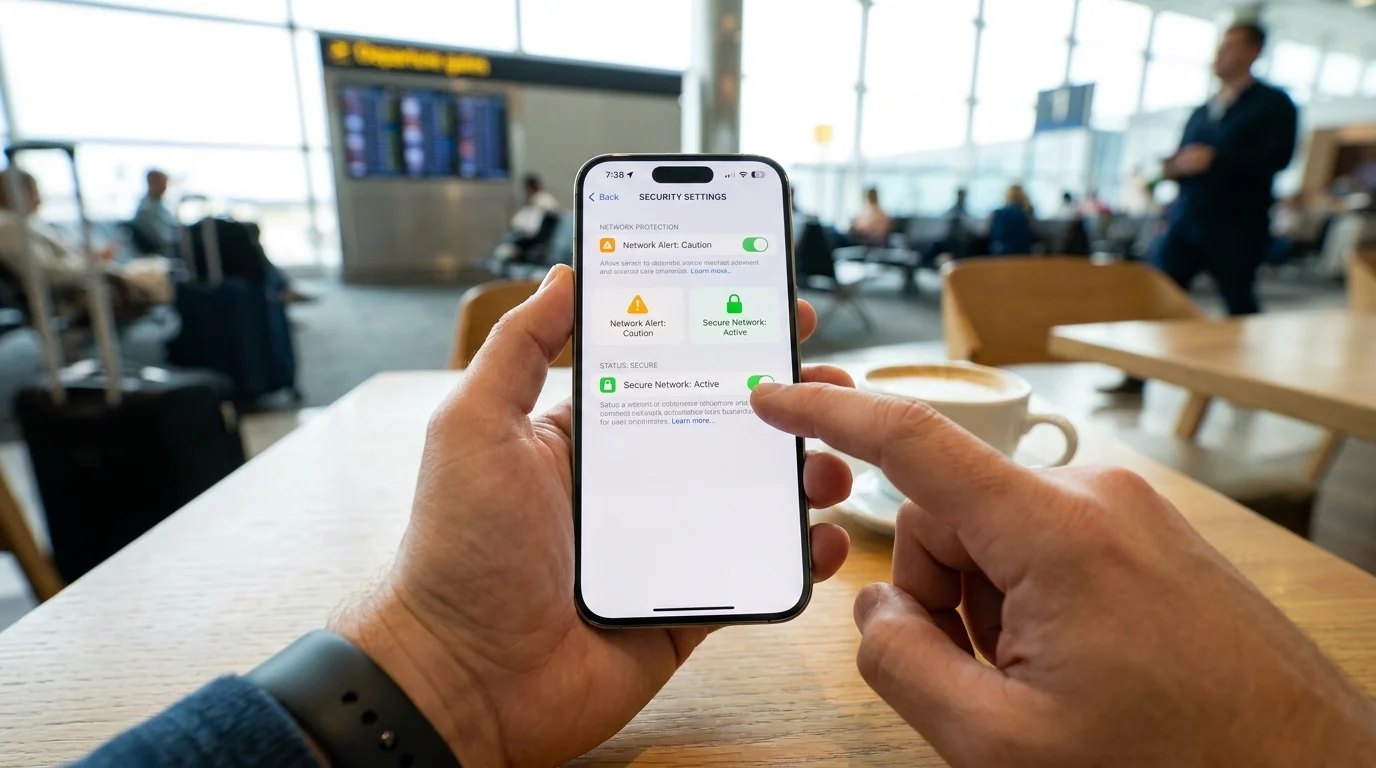
The dull hum of Terminal 3 settles into your shoulders around dawn. Between the hiss of industrial espresso steam and the rhythmic boarding chimes echoing off polished terrazzo, you find a plastic gate chair within reach of a working outlet. Your boarding pass is buried in your inbox, so your thumb instinctively flicks open your phone settings, taps the glowing beacon labeled Complimentary_Airport_HighSpeed, and accepts the vague terms on the splash screen without a second thought.
Within three seconds, the status bar shows full signal bars. To your eyes, the digital transaction is complete, seamless, and benign. You pull up your work communication channels, refresh your cloud drive, and check your banking balance while waiting for boarding group four. The small green padlock icon next to your web addresses offers a quiet sense of safety, whispering that modern cryptography has built an impenetrable glass wall around your morning routine.
Yet in the invisible air space between your palm and the white plastic saucer antenna mounted twenty feet above your head, your hardware is broadcasting your unmasked digital footprints to anyone running a basic network sniffer. While your actual passwords might remain scrambled inside encrypted tunnels, the initial name lookups, session identifiers, and tracking cookies bounce across the concourse in clear, unvarnished daylight.
The Transparent Envelope: Why the Web Still Leaks Your Steps
Most travelers operate under the comfortable assumption that modern web browsing functions like sending sealed letters through armored transit. In reality, connecting to an open terminal network without customized protection resembles dropping postcards into an open bin where anyone leaning over the counter can read the addresses, the routing stamps, and the return signatures.
When your device prepares to connect to a website, it must first ask the local gateway for the specific numeric IP address linked to that name. On stock hardware, this lookup occurs over unencrypted plain-text protocols. In an airport concourse packed with five thousand transient passengers, a rogue access point mimicking the official network—or simply a malicious actor sitting three gates away on the legitimate one—silently intercepts these inquiries.
These inquiries leak far more than just domain names. They reveal your active software suites, background cloud sync endpoints, and the ambient telemetry your apps ping every twenty seconds. Worse, poorly insulated content delivery networks occasionally push auxiliary session tokens and unencrypted verification cookies through these plain-text handshakes, offering eavesdroppers immediate unauthorized session hijacking opportunities without ever needing your account password.
- Adjustable monitor risers lift screen angles to eliminate nagging stiff neck soreness
- Refurbished iPad screens expose dead touch zones during five-minute blank note tests
- Garmin Forerunner watches eliminate erratic pulse spikes after wiping oily sensor glass clean
- OnePlus SuperVOOC bricks generate scorching surface warmth during rapid overnight battery top-ups
- YubiKey security keys block predatory SIM swap scams replacing vulnerable SMS login codes
The Field Reality from a Gateway Inspector
Marcus Vance, a 43-year-old network penetration specialist who spends half his year auditing industrial Wi-Fi deployments across US transportation hubs, knows this vulnerability intimately. Sitting on a flight delay in Dallas two years ago, Marcus fired up a passive packet analyzer to test the local perimeter security of the public concourse antenna array.
Within forty minutes of passive monitoring—without attempting a single active exploit—his terminal captured over eight hundred distinct unencrypted lookup requests and several dozen lingering session tokens from laptops and tablets sleeping inside carry-on bags. Modern operating systems constantly seek background updates, and unless instructed otherwise, they hand the keys to their destination maps directly to whichever gateway happens to offer the strongest radio beacon.
Mapping the Exposure: Three Distinct Mobile Profiles
Securing your device requires understanding how your specific travel behavior exposes your data packets to the surrounding room.
For the Roaming Remote Worker
If you travel with a company laptop and fire up corporate chat clients while balancing a paper coffee cup on your knee, your machine is a beacon of high-value metadata. Cloud-based project boards, client portals, and productivity suites send dozens of constant background queries. Forcing an encrypted lookup rule stops ambient corporate profiling and seals off the specific subdomains your client databases rely upon.
For the Occasional Leisure Flyer
You might only use your smartphone to track your flight, stream a downloaded podcast, or order rideshare pickup for your arrival. Even so, retail apps, travel portals, and hotel loyalty software continuously transmit unencrypted advertising IDs and device fingerprinting beacons across open airport channels. Locking down DNS prevents ad-trackers and local snoops from profiling your exact physical movements across terminals.
For the Battery-Conscious Minimalist
You prefer keeping your device lean, running without bulky commercial protection suites that consume processing power and chew through twelve percent of your battery before takeoff. Native private routing delivers absolute cryptographic secrecy at the packet level without the heavy system overhead, heat generation, or constant connection drops associated with third-party software wrappers.
Mindful Application: The One-Tap Native Lockdown
Securing your device does not require complex technical routines or paid subscription utilities. You can resolve this vulnerability using the native settings already embedded inside your mobile operating system.
By directing your network requests through an encrypted transport mechanism—known technically as DNS-over-TLS (DoT) or DNS-over-HTTPS (DoH)—every single address request leaves your antenna wrapped in strong cryptography before it hits the concourse router.
- Android Devices (The Native Toggle): Navigate to Settings > Network & internet > Private DNS. Switch the selection from ‘Automatic’ to ‘Private DNS provider hostname’, enter
one.one.one.oneordns.google, and tap save. - Apple iOS & iPadOS (The Zero-Overhead Profile): iOS handles native encrypted lookups through signed configuration profiles rather than buried menus. Install an official, verified configuration payload (such as Cloudflare’s or Quad9’s free mobile profile) which automatically encrypts all transport queries without background battery drain.
- macOS & Windows Laptops: In your preferred modern browser, open settings, locate the privacy tab, and toggle ‘Use secure DNS’. Select a trusted encrypted provider from the pulldown menu to prevent coffee shop and terminal gateways from reading your session destinations.
Once enabled, this protocol creates an impenetrable cryptographic barrier at the gateway boundary. The airport antenna can still route your data to the wider web, but it cannot read where your packets are heading, cannot swap your destinations, and cannot intercept transient session cookies bouncing through background background updates.
The Quiet Confidence of a Sealed Connection
Stepping into a crowded airport gate is inherently chaotic. You navigate delayed departures, gate reassignment alerts, and the constant friction of shared physical spaces. Your personal digital life should not reflect that same vulnerability.
Taking thirty seconds to adjust how your pocket hardware handles basic network queries replaces anxious vigilance with quiet confidence. You can lean back, sip your lukewarm tea, and refresh your personal accounts knowing that while the open terminal airwaves remain noisy, your digital conversation remains strictly private.
“True network privacy in public transit isn’t about hiding your presence; it is simply refusing to let strangers read your mail before it leaves your hands.”
| Network Configuration | Interception Risk Profile | Practical Battery & Speed Impact |
|---|---|---|
| Default Airport Wi-Fi | High; broadcast plain-text lookups and vulnerable session cookies visible to local snoops. | Baseline battery draw; zero added latency but absolute exposure to eavesdropping. |
| Third-Party Protection Apps | Low; encrypts all outgoing data streams across custom server hubs. | Noticeable battery consumption (8–15%); occasional authentication drops on hotel portals. |
| Native Private DNS (DoT/DoH) | Near-Zero; completely encrypts packet address lookups directly at the kernel layer. | Zero battery penalty; ultra-fast response times with no background app footprint. |
Frequently Asked Questions
Does enabling Private DNS break captive login portals at airports?
Occasionally, an airport splash screen will fail to load if Private DNS is engaged before you accept terms. Simply turn Private DNS off for ten seconds to complete the login agreement, then toggle it back on once the connection is established.Why doesn’t normal website encryption protect my destination addresses?
While standard web cryptography scrambles the page content, your device must still ask the local router where that server lives. Those directory queries are sent unencrypted by default, allowing local observers to map every site you visit.Will configuring this setting slow down my browsing speeds?
No. Trusted private resolvers maintain high-speed global nodes that are frequently faster and far more responsive than the overcrowded, poorly maintained local routers provided inside airport terminals.Is this configuration safe to leave active when returning home?
Yes, keeping Private DNS enabled permanently is ideal practice. It stops your home internet service provider from harvesting your daily browsing habits for advertising profiles.Do I need to pay for a subscription to use secure DNS?
No. Leading high-performance encrypted resolvers provided by organizations like Cloudflare (1.1.1.1) and Quad9 (9.9.9.9) are completely free, privacy-audited public utilities.